
In development
Build and run Xcode projects and workspaces on a Mac.
It brings build controls, coding agents, logs, Git, and project information into one place.
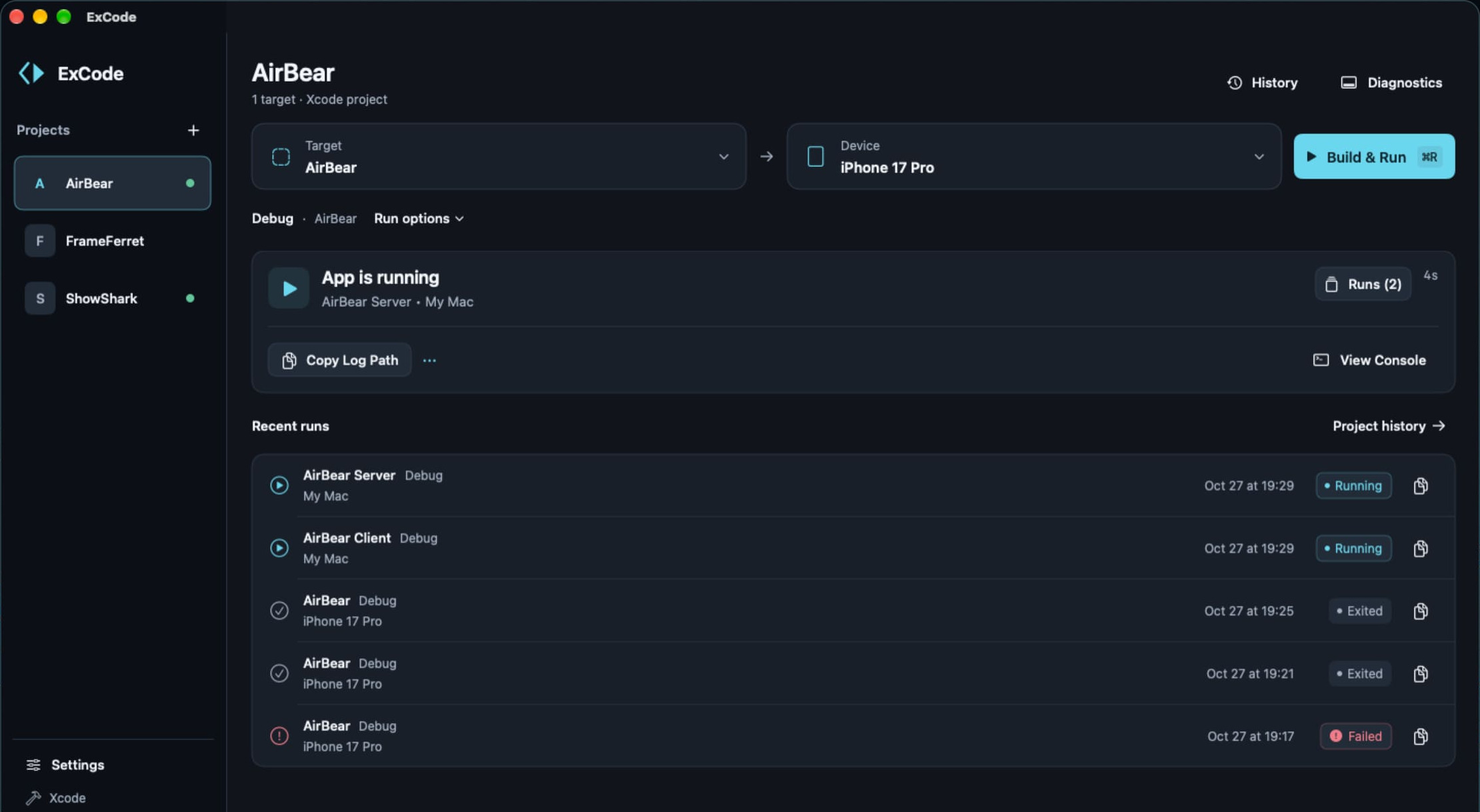
Target, device, and ⌘R
Open an Xcode project or workspace you already have. Choose the target and the device, then press ⌘R. Mac apps run on the Mac. iPhone and iPad apps run on physical devices.
Runs stay separate, so a Mac server can keep running while you rebuild a client. ExCode uses your Xcode tools through ExCode Companion, which you install from Settings. It remembers the target, scheme, configuration, and device.
Claude Code, Codex CLI, and Grok Build
Open one of those agents inside the project. It runs in a project terminal, with its own interface and approval controls. Open several terminals when you need them. Switch projects while the agents continue, and attention indicators show which terminals need input.
You can review one project's changes while an agent works on another.
Logs, Sentry, and Git
ExCode records build, application, and debugger output for each run. Logs remain after the run ends and after ExCode restarts. Copy Log Path gives an agent that path without opening the console. You can search earlier runs when a problem returns.
From the same project, review a Sentry issue, use Send to Terminal, inspect the Git diff, and commit. You can pause the app to examine threads, stack frames, and available variables. Notes and tasks stay on the Mac in encrypted storage. Prompt mode keeps the exact text you give an agent. Markdown export and encrypted backup are available.
Platforms
Mac